Create a Business Email Account: Complete Guide 2026
April 29, 2026
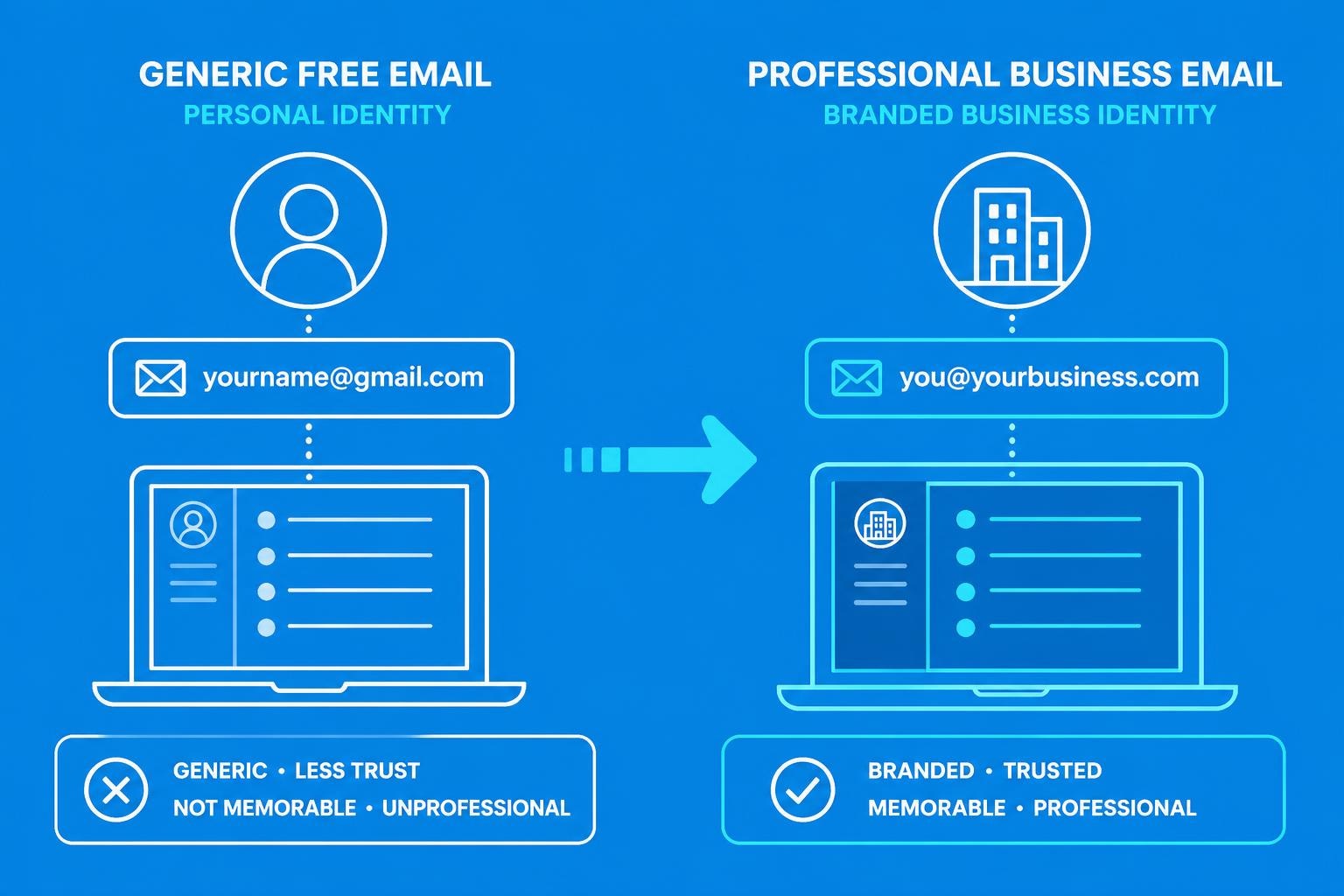
A professional email address serves as the digital foundation of your small business identity. Whether you're launching a startup or transforming an existing venture, learning how to create a business email account properly establishes credibility, builds customer trust, and separates your personal communications from professional correspondence. The right business email setup positions your brand for growth whilst providing the security and functionality modern enterprises demand.
Understanding Business Email Requirements
Before you create a business email account, identify your specific needs. Small businesses require different functionality compared to freelancers or larger organisations, and understanding these distinctions saves time and money.
Core Features Every Business Email Needs
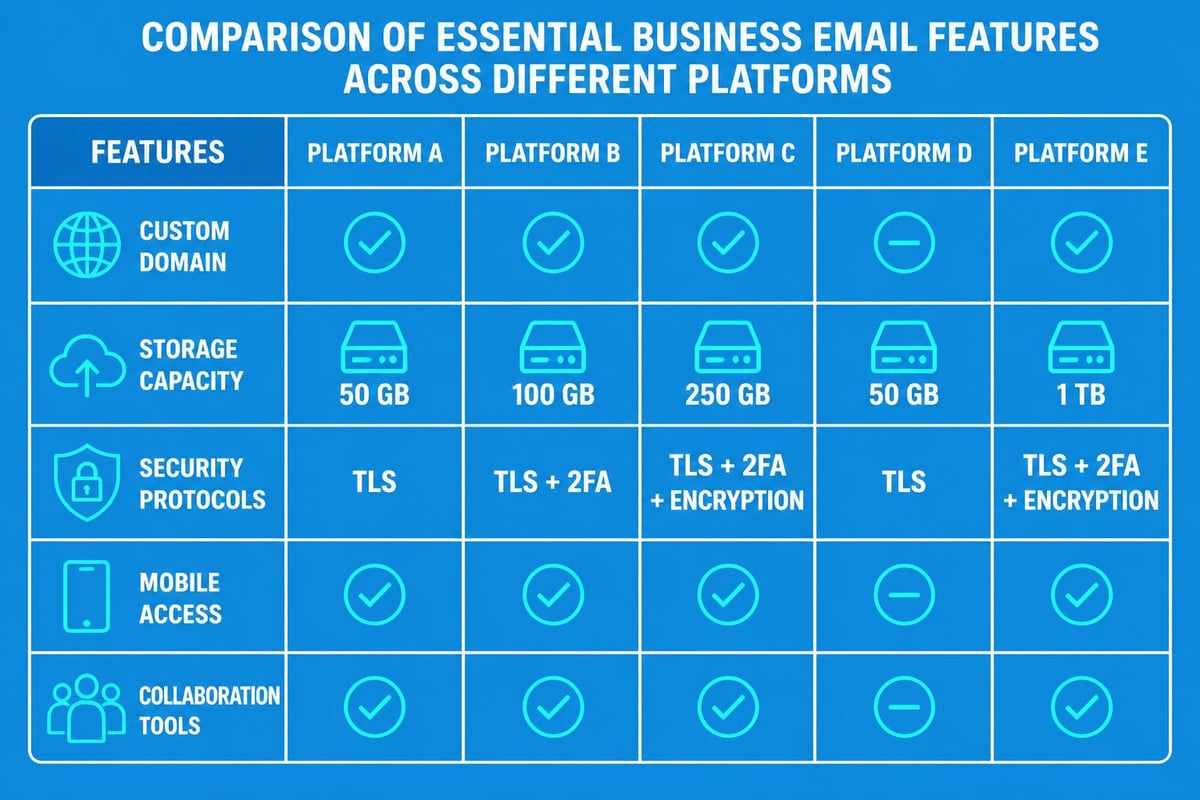
Your business email platform must deliver essential capabilities that support daily operations. Custom domain integration ranks as the primary requirement, allowing your email address to reflect your brand ([email protected]) rather than using generic providers. Professional storage capacity ensures you can archive important communications without constantly deleting messages to free up space.
Consider these fundamental features:
- Spam filtering and security protocols to protect against phishing attempts
- Mobile device synchronisation for access across smartphones and tablets
- Calendar integration for scheduling meetings and managing appointments
- Contact management systems that organise client information
- Collaboration tools enabling team communication
The best email providers in 2026 offer these features as standard, though implementation and user experience vary significantly between platforms. Security has become particularly crucial as cybercriminals develop increasingly sophisticated attacks.
Assessing Your Business Scale
Small businesses face unique challenges when selecting email solutions. A sole trader requires different capabilities than a team of fifteen employees. Single-user accounts need robust personal productivity features, whilst multi-user setups demand administrative controls and shared resources.
| Business Size | Key Priorities | Recommended Features |
|---|---|---|
| Sole Trader | Cost efficiency, personal branding | Custom domain, 15-30GB storage, mobile apps |
| 2-5 Employees | Basic collaboration, shared calendars | Team folders, contact sharing, video calls |
| 6-20 Employees | Administrative control, security | User management, advanced security, compliance tools |
Understanding your current needs whilst anticipating growth helps you create a business email account that scales appropriately without requiring disruptive migrations later.
Selecting the Right Email Provider
Choosing between various providers involves balancing functionality, cost, and integration capabilities. Your decision impacts daily productivity and long-term business operations.
Popular Business Email Platforms
Google Workspace dominates the business email market, offering Gmail's familiar interface alongside powerful productivity tools. When you create a professional business email using Google Workspace, you gain access to Google Drive, Calendar, Meet, and collaborative document editing.
Microsoft 365 provides Outlook email with extensive Office application integration. This platform suits businesses already invested in Microsoft's ecosystem, particularly those requiring advanced Excel functionality or SharePoint collaboration.
Standalone email hosting through providers like Zoho Mail or ProtonMail offers alternatives focusing on privacy or cost reduction. These solutions work well for businesses with simple email needs or specific security requirements.
When evaluating providers, examine:
- Monthly or annual costs per user
- Storage allocations and upgrade options
- Technical support availability and quality
- Integration with existing business tools
- Migration assistance from current email systems
The connection between your email platform and marketing activities matters significantly. Services like Astonish Email integrate seamlessly with professional business addresses, enabling you to leverage your email domain for marketing campaigns whilst maintaining separate infrastructure for day-to-day correspondence.
Domain Registration Considerations
You cannot create a business email account with a custom domain until you own that domain. Domain registration through providers like GoDaddy, Namecheap, or Google Domains typically costs £8-15 annually for standard .com or .co.uk extensions.
Your domain name should:
- Reflect your business name clearly
- Remain short and memorable
- Avoid hyphens or numbers that complicate verbal communication
- Consider future expansion beyond current services
Some email providers bundle domain registration with email services, simplifying setup for newcomers. Others require you to purchase domains separately then configure DNS records to connect your domain to your email service.
Step-by-Step Account Creation Process
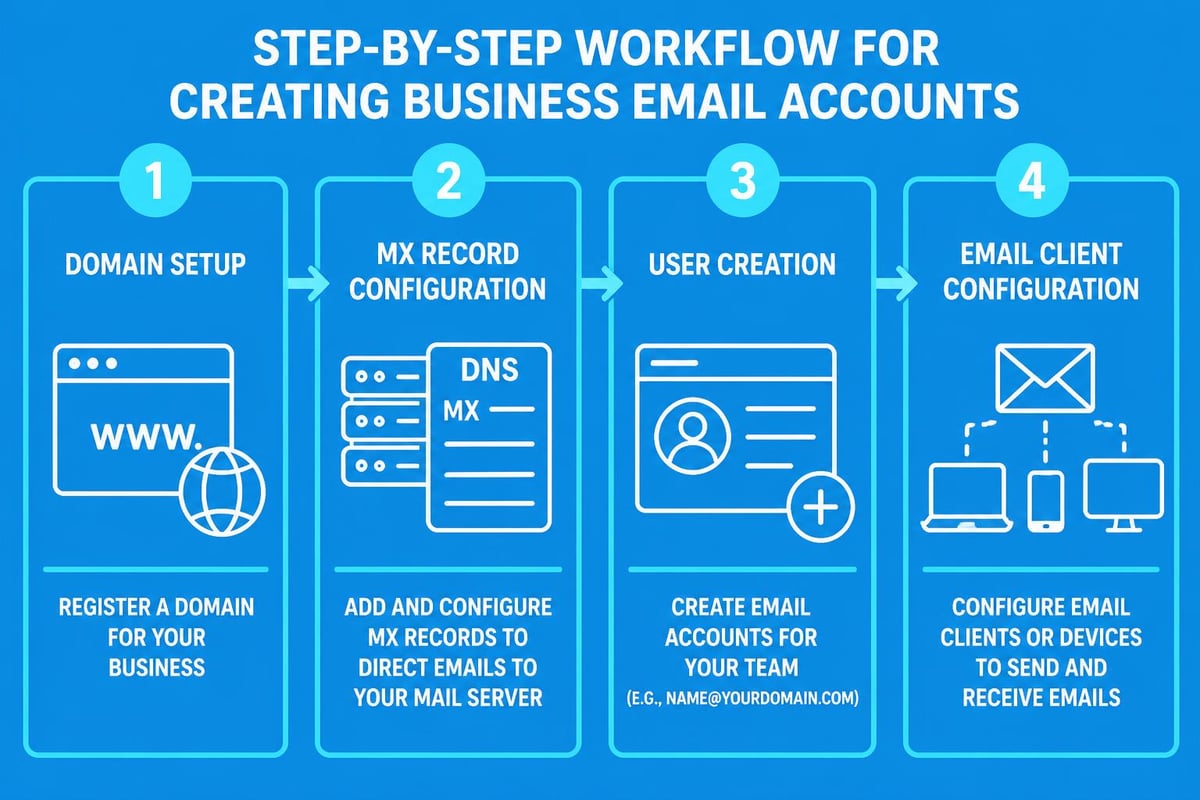
The technical process to create a business email account varies by provider, but fundamental steps remain consistent across platforms.
Initial Setup and Configuration
Begin by visiting your chosen provider's website and selecting the business email package matching your requirements. Most platforms offer tiered pricing based on storage capacity and additional features.
Account registration requires basic business information including your company name, physical address, and payment details. You'll specify the number of user accounts needed and select your billing cycle. Annual payments often provide discounts compared to monthly billing.
During setup, you'll either:
- Purchase a new domain directly through the provider
- Connect an existing domain you already own
- Transfer domain management to your new email provider
Domain connection requires updating DNS records, specifically MX records that direct incoming email to your new provider's servers. This technical step typically involves logging into your domain registrar's control panel and entering values provided by your email service.
Creating User Accounts and Addresses
After establishing your primary account, create individual email addresses for yourself and team members. Consider your business email naming conventions carefully before committing to a structure.
Common formats include:
- [email protected]
- [email protected]
- [email protected]
- [email protected] (sales@, support@, info@)
Role-based addresses like [email protected] allow multiple team members to monitor and respond from a shared inbox. This approach suits customer service functions but complicates accountability for internal communications.
Establish email addresses systematically:
- Create your primary business address first
- Set up role-based addresses for key functions
- Add individual user accounts for team members
- Configure distribution lists for departments
- Establish aliases for alternative email formats
Configuring Security and Authentication
Security configuration protects your business from unauthorised access and email-based attacks. Two-factor authentication (2FA) should be mandatory for all users, requiring both password and mobile device verification for account access.
Enable these security measures immediately:
- Strong password policies requiring minimum length and complexity
- SPF, DKIM, and DMARC records to prevent email spoofing
- Automatic logout after periods of inactivity
- IP address restrictions if your team works from fixed locations
- Email encryption for sensitive communications
Cybercriminals increasingly exploit inbox rules to hijack business email accounts, making regular security audits essential. Review forwarding rules, delegation settings, and login history monthly to detect suspicious activity.
Connecting Email to Your Devices
Mobile and desktop access ensures you can manage communications regardless of location or device.
Desktop Email Client Setup
Desktop applications like Outlook, Apple Mail, or Thunderbird provide offline access and advanced email management features. To configure your client, gather these details from your email provider:
| Setting Type | Information Required |
|---|---|
| Incoming Mail Server | IMAP server address and port |
| Outgoing Mail Server | SMTP server address and port |
| Authentication | Username and password |
| Security Type | SSL/TLS settings |
IMAP protocol synchronises email across all devices, ensuring messages read on your phone appear as read on your desktop. This differs from older POP3 protocols that download messages to a single device.
Most modern email providers support OAuth authentication, eliminating the need to enter passwords directly into email clients. This method improves security by allowing providers to revoke access without changing your primary password.
Mobile Device Configuration
Smartphones and tablets serve as primary communication devices for many business owners. Both iOS and Android devices include built-in email applications that simplify setup when you create a business email account.
Mobile configuration typically requires only your email address and password, as devices automatically detect server settings. Manual configuration uses the same IMAP and SMTP details as desktop clients.
Configure mobile-specific settings:
- Push notifications for immediate message alerts
- Signature blocks with contact information
- Default send-from address if managing multiple accounts
- Download limits to preserve mobile data allowances
- Meeting response options for calendar integration
Implementing Email Best Practices
Technical setup represents only the beginning. Effective business email usage requires ongoing attention to communication standards and organisational systems.
Professional Communication Standards
How you compose and manage messages directly impacts client perception and internal efficiency. Following established best practices for business emails maintains professionalism whilst improving response rates.
Subject lines should clearly indicate message content, enabling recipients to prioritise appropriately. Vague subjects like "Question" or "Update" provide insufficient context, whilst specific subjects like "Q2 Marketing Budget Approval Request" communicate purpose immediately.
Maintain these communication standards:
- Address recipients by name when possible
- State your primary purpose within the first two sentences
- Use bullet points for multiple questions or requests
- Include clear calls to action when requiring responses
- Proofread for grammar and spelling errors
- Respond to messages within 24 business hours
Your email signature functions as a digital business card, providing recipients with multiple contact methods. Include your full name, title, company name, phone number, and relevant social media links. Avoid excessive graphics or promotional content that distracts from message content.
Organising Email Workflows
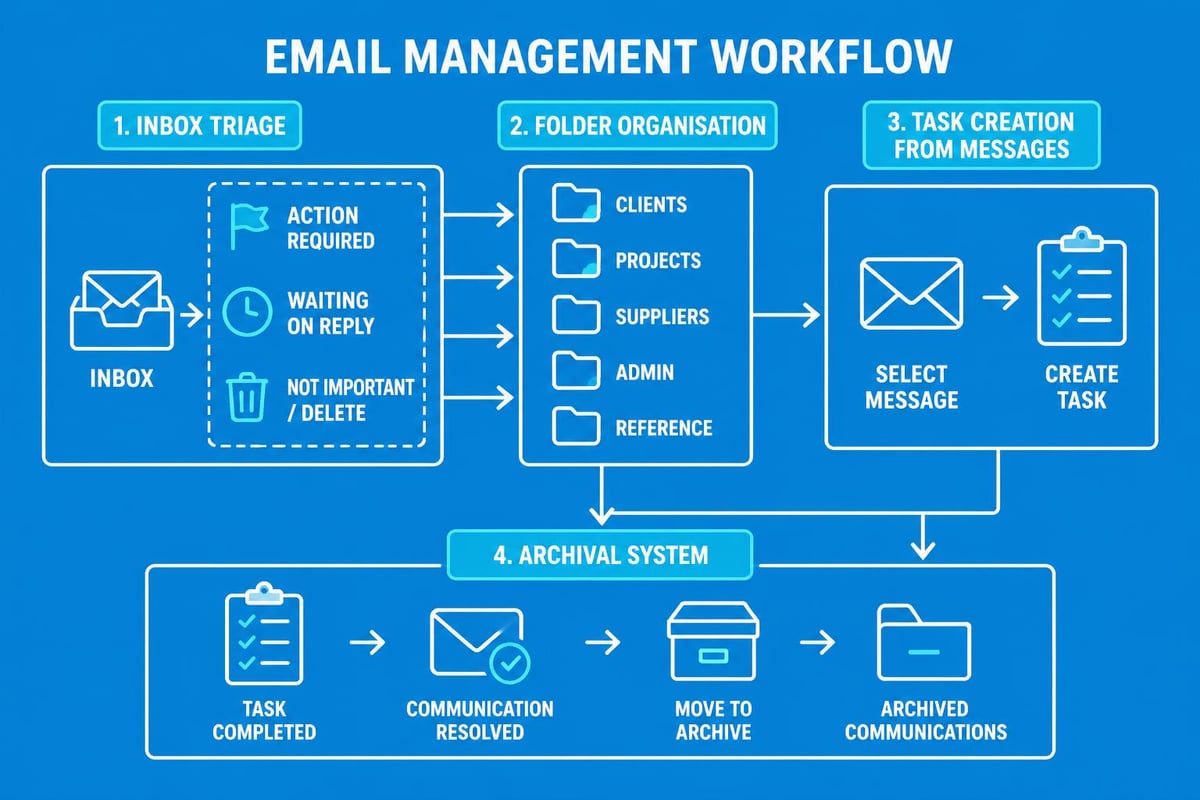
Inbox management prevents important messages from disappearing amongst newsletters and notifications. Establish folder systems that reflect your business processes rather than arbitrary categories.
Effective organisation strategies include:
- Priority folders for client communications requiring action
- Project folders separating communications by active initiatives
- Archive folders for completed matters requiring retention
- Reference folders for policies, procedures, and templates
- Automated filters routing specific senders to designated folders
The getting started with email approach varies between businesses, but consistency matters more than complexity. Simple systems maintained diligently outperform elaborate schemes abandoned after initial enthusiasm.
Email templates save time on frequently sent messages. Create templates for common scenarios including client onboarding, meeting scheduling, invoice transmission, and follow-up communications. Personalise each template before sending to maintain authentic communication.
Integrating Email with Business Tools
Modern business email extends beyond simple message exchange, connecting with broader productivity and customer relationship systems.
Customer Relationship Management
CRM platforms track customer interactions, sales pipelines, and support history. Integrating your business email with CRM systems ensures all customer communications appear within their contact records.
Popular CRM integrations include:
- Automatic email logging that saves sent and received messages to customer files
- Contact synchronisation keeping email and CRM address books aligned
- Template access allowing you to send CRM-tracked emails from your inbox
- Activity tracking recording email interactions within sales pipelines
- Automated follow-up triggering reminder emails based on customer lifecycle stages
When combined with platforms like Astonish Email's marketing tools, this integration enables sophisticated customer journeys whilst maintaining personal communication through your business email account.
Productivity Platform Connections
Email integration with task management, project collaboration, and scheduling tools transforms messages into actionable work items. Modern productivity suites recognise email's central role in business communication.
Key integrations streamline workflows:
- Calendar connections automatically adding meeting invitations to schedules
- Task creation converting emails into tracked action items
- File sharing linking cloud storage to email attachments
- Team channels routing certain emails to collaborative workspaces
- Note-taking capturing email content into reference systems
These connections reduce context switching between applications, keeping you focused within your email environment whilst accessing broader business functionality.
Maintaining Email Security and Compliance
Ongoing security management protects your business from data breaches, compliance violations, and operational disruptions.
Regular Security Audits
Monthly security reviews identify vulnerabilities before they become incidents. Review user access permissions, particularly for departed employees whose accounts should be disabled immediately upon termination.
Audit these elements quarterly:
| Security Component | Review Actions |
|---|---|
| User Accounts | Verify all active accounts belong to current employees |
| Administrative Access | Confirm only necessary users have admin privileges |
| Forwarding Rules | Check for unauthorised email forwarding configurations |
| Mobile Devices | Review connected devices and remove unknown entries |
| Password Changes | Ensure passwords rotate according to policy |
Email archiving serves both compliance and practical purposes. Many industries require retention of business communications for specific periods. Automated archiving systems capture all sent and received messages, storing them in searchable, tamper-proof repositories.
Protecting Against Email Threats
Business Email Compromise (BEC) represents one of the costliest cyber threats facing small businesses. These sophisticated attacks impersonate executives or trusted partners, requesting urgent wire transfers or sensitive information.
Protect against common email threats:
- Verify unusual requests through alternative communication channels
- Examine sender addresses carefully for slight misspellings
- Question urgent payment demands that deviate from normal processes
- Enable banner warnings for external emails to aid identification
- Train staff regularly on recognising phishing attempts
Advanced security measures include implementing email authentication protocols and monitoring for suspicious patterns. Understanding how compromised email accounts operate helps you recognise warning signs before significant damage occurs.
Scaling Your Email Infrastructure
As your business grows, email requirements evolve. Planning for expansion prevents disruptive migrations during critical growth phases.
Adding New Users and Departments
Most providers simplify user addition through administrative dashboards. When hiring new team members, create their email accounts before their start date, allowing immediate productivity from day one.
Department growth requires thoughtful address planning. Establish consistent naming conventions that accommodate expansion:
- Department prefixes (sales.teamlead@, support.manager@)
- Numbering systems for similar roles (sales1@, sales2@)
- Regional identifiers for geographic expansion (uk.sales@, us.sales@)
Distribution lists enable communication with entire departments through single addresses. Configure these lists to include all relevant team members, updating membership as staff join or leave departments.
Evaluating Storage and Performance
Email storage consumption increases steadily as businesses operate. Monitor storage usage across accounts, identifying users approaching limits before disruptions occur.
Consider storage optimisation strategies:
- Implement automatic deletion policies for old Deleted Items
- Archive historical emails to cheaper storage tiers
- Restrict attachment sizes and encourage cloud file sharing
- Upgrade storage allocations for high-volume users
- Train staff on efficient email management practices
Performance monitoring ensures email delivery remains reliable. Track message delivery times, spam filter effectiveness, and system uptime. Most business email providers guarantee 99.9% uptime, but monitoring actual performance verifies these commitments.
When you create a business email account with growth in mind, you establish systems capable of supporting your business through multiple expansion phases without requiring fundamental platform changes.
Advanced Email Management Techniques
Sophisticated email users leverage automation, filtering, and productivity techniques to manage high message volumes efficiently.
Automation and Smart Filtering
Email rules automatically process incoming messages based on sender, subject, or content criteria. These rules reduce manual sorting whilst ensuring important messages receive priority attention.
Effective automation examples include:
- Client communication routing to dedicated folders by sender domain
- Priority flagging for messages from key accounts or partners
- Auto-response activation during holidays or focused work periods
- Categorisation applying labels based on message content
- Task creation automatically generating action items from specific senders
Smart filtering extends beyond simple rules, using algorithms to identify message importance. Priority inbox features separate likely important messages from newsletters and notifications, though effectiveness improves as the system learns your patterns.
Email Analytics and Optimisation
Understanding your email patterns reveals optimisation opportunities. Most business email platforms provide basic analytics showing sent/received message volumes, storage usage, and response times.
Advanced analytics examine:
- Peak activity hours indicating optimal times for important communications
- Average response times highlighting potential process improvements
- Thread lengths suggesting topics requiring alternative communication methods
- External versus internal volume showing communication distribution
- Attachment usage patterns indicating file sharing workflow efficiency
For businesses combining transactional email with marketing activities, platforms like Astonish Email provide sophisticated analytics linking email performance to business outcomes, tracking open rates, click-through rates, and conversion metrics across campaigns whilst maintaining your professional business email for operational communications.
Creating a professional business email account establishes the communication foundation essential for modern business success. By selecting appropriate providers, implementing robust security measures, and adopting effective management practices, you position your small business for sustainable growth. Whether you're just getting started or expanding your existing infrastructure, Astonish Email supports small businesses with powerful email marketing tools that complement your business email account, helping you convert professional communications into customer relationships and revenue growth.